Jobber Review (2026): We Ran a Sample Job Through It — Quote to Invoice
Some links on this page may be affiliate links. If you sign up through them, we may earn a commission at no extra cost to you. Learn more.
This Jobber review is based on hands-on use, not the sales page. On October 13, 2026, we signed up for Jobber’s 14-day free trial and set up a demo house-cleaning business. Then we took one job all the way through: quote → client approval → scheduled job → completed visit → invoice.
Every screenshot below comes from that trial. The client is fake; everything else is exactly what Jobber showed us.
Our verdict in 30 seconds
- Best at: the quote-to-invoice flow. Each step hands off cleanly to the next, and clients get polished emails at every stage.
- Standout features: optional add-ons clients can tick on a quote, e-signatures, automatic quote follow-ups, and profit per job.
- Watch out for: a few confusing screens, and a price that’s higher than most rivals.
- Cost: from $29/month (1 user, billed annually). Most small teams pay $149–$299/month.
- Best for: owner-operators and small crews who send a lot of quotes and want to look professional.
14-day free trial, no credit card. It’s the same trial we used for this review.
What we tested (and what we didn’t)
| Tested | Not tested yet |
|---|---|
| Signup and first setup | The mobile app |
| Clients and properties | Taking payments (Jobber Payments) |
| Quotes, optional items, e-signature | Recurring jobs |
| Jobs, visits, and scheduling | Two-way texting and AI features |
| Invoices and client emails | QuickBooks sync |
Our 14-day trial has ended, so the right-hand column stays untested. Anything this review says about those features comes from Jobber’s official pages, not from our own use.
Signing up: fast, no credit card
The signup asked for an email, a password, a company name, and an industry. No credit card — the form says so, and it never asked. A trial started on the Grow plan, which is Jobber’s second-highest tier.
Two things to know before you start:
Check your country and currency first
Our new account started with the wrong currency, and we only noticed when our first quote showed it. Jobber fills in regional settings automatically, so check Settings → Company Settings before you build anything. It’s a 30-second fix.
The countdown offer
Right after signup, Jobber shows a “limited time offer” with a countdown timer (about 2½ hours for us): 20% off the first three months of a monthly plan, or a bigger discount if you pay for a year. You don’t have to decide during the trial. Ignore the timer and use your 14 days.
Quotes: the best part of Jobber
Building a quote is quick: pick a client, add line items with a price and description, and send.
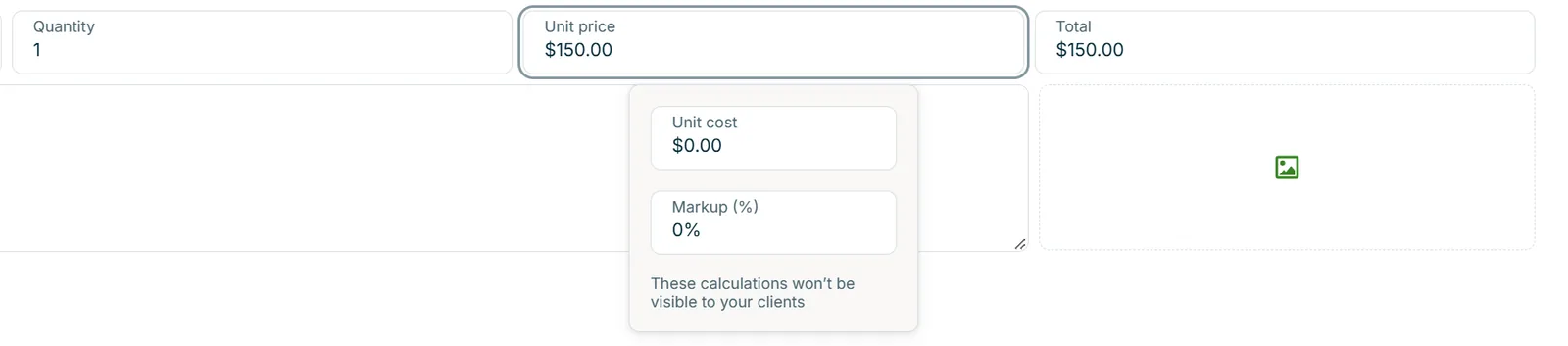
Two features stood out:
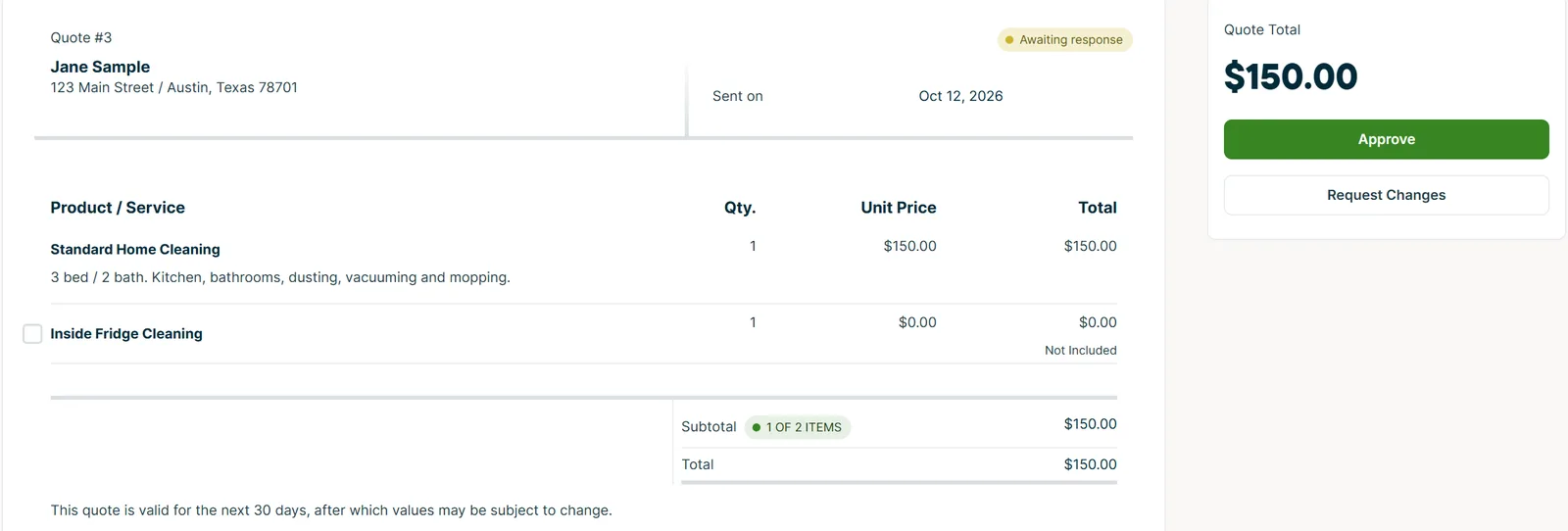
- Optional line items. Tick “Mark as optional” and the client can choose whether to add it. We offered an “Inside Fridge Cleaning” add-on — an easy upsell without a phone call.
- Unit cost and markup. Click the price field and a small pop-up lets you enter your cost and markup. Clients never see it, and Jobber uses it to calculate your profit later.
Here’s what the client sees after clicking the link in the email:
When the client clicks Approve, they sign by drawing or typing their name:
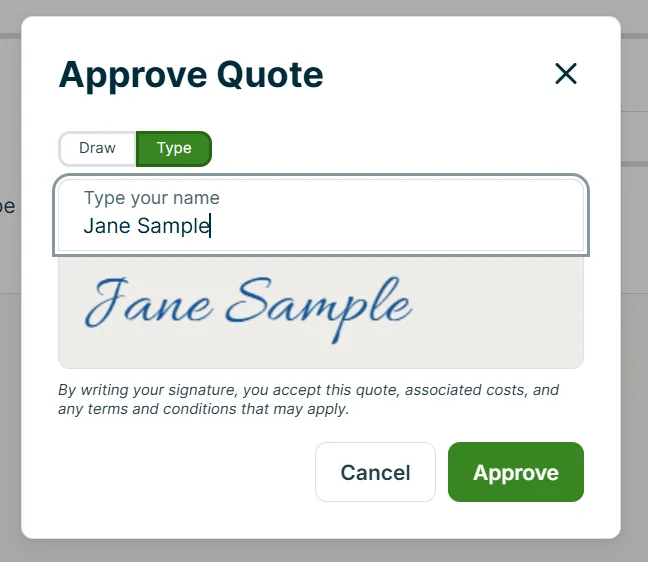
Jobber then emails the client a thank-you note with a signed PDF copy of the quote. That’s the kind of paperwork that protects you if there’s a dispute later.
Automatic follow-ups
Before our client approved, Jobber had already put a reminder for the quote two days later on our calendar. Chasing quotes is where many small businesses lose jobs; this does it for you.
Where we got stuck
Not everything was smooth. These are real mistakes we made in our first hour:
Three things that confused us
- Pressing Enter saved the whole quote. We typed a number in the cost pop-up, pressed Enter, and Jobber saved the quote and left the page — before we’d finished the other fields.
- Our add-on price turned into $0. We typed $35 into the unit cost box instead of the price box. Jobber set the markup to −100% and the price to $0. The math is correct; it’s just easy to type in the wrong box.
- “Convert to Job” only appears after approval. If you create a job separately, the quote’s line items don’t carry over. Wait for approval, then convert.
None of these are bugs. But if you’re new to software like this, expect a learning curve of an afternoon or two.
Jobs and scheduling
Once the quote was approved, Convert to Job created a job with the line items already filled in. We picked a date, assigned it, and added visit notes for the crew (“Key under the doormat. Two dogs — keep the back gate closed”).
The job page shows revenue, cost, and profit for that job in the corner:
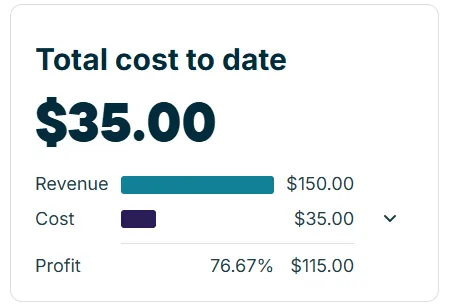
That profit panel (job costing) is only on Grow and Plus. If you’ve never known which jobs actually make money, it’s worth paying for.
Scheduling from the calendar was harder
Adding a job straight from the calendar asked us to pick or add a “property.” Our client had two near-identical addresses (“123 Main St” and “123 Main Street”), and adding another was rejected as a duplicate. We gave up and scheduled from the quote instead, which worked fine. Tip: keep one address per client.
Completing the job and invoicing
To finish a visit, you click a small check icon on the visit row. (Don’t use the checkbox on the left — that just selects the row. That one confused us too.)
When the last visit was done, Jobber asked whether to close the job. Then:
- The client automatically got a “visit complete” email with a 0–10 rating question — a quick way to collect feedback and find happy clients to ask for reviews.
- The invoice was created from the job in one click, with the line items filled in.
- Jobber suggested attaching the signed quote to the invoice.


The client emails look clean and professional. The only branding is a small “Powered by Jobber” line in the footer.
How much does Jobber cost?
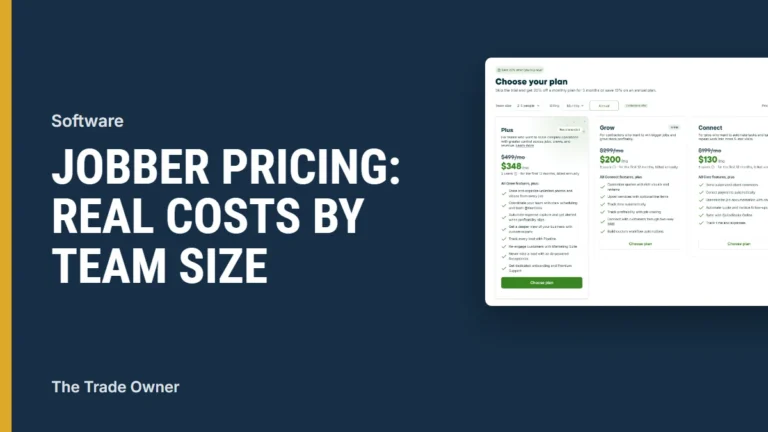
Jobber has four plans. Prices below are for 5 users, from Jobber’s public pricing page (verified October 12, 2026):
Inside the trial, Jobber’s upgrade page showed lower first-year prices for annual billing — for 5 users, $130 (Connect), $200 (Grow), and $348 (Plus) per month for the first 12 months. Offers like this change, so check before you buy.
The Core plan ($29/month annually, 1 user) covers quotes, invoices, and scheduling, but not automatic follow-ups or QuickBooks sync.
For every plan, team size, and fee, see our full Jobber pricing guide.
Two costs that surprise people
- The “1-year commitment” monthly option is a 12-month contract — you can’t cancel early.
- Card processing fees (2.9% + 30¢ per payment) can cost more than the subscription.
Pros and cons
Pros
- Smooth quote → job → invoice flow with no retyping
- Optional add-ons on quotes make upselling easy
- Clients can e-sign quotes; signed PDFs are saved for you
- Automatic quote reminders, thank-you emails, and feedback surveys
- Job costing shows your profit on every job (Grow and up)
- 14-day trial with no credit card
Cons
- Pricier than most rivals, especially for teams
- Some screens are confusing at first (cost pop-up, visit checkboxes)
- Job costing and two-way texting need Grow or higher
- Sample data and duplicate addresses can clutter a new account
- Pushy countdown discount right after signup
Who should use Jobber?
- Price: From $29/mo annually · $49 month-to-month
- Free trial: 14 days, no credit card
Good fit: cleaning, lawn care, pressure washing, and other home service businesses that send lots of quotes, want clients to approve online, and want to look professional from day one.
Look elsewhere if: you’re on a tight budget, you rarely quote (mostly repeat customers), or you need deep dispatch tools for a large crew.
Not sure? Compare it with cheaper options in our list of Jobber alternatives, see how it stacks up in our best field service software ranking, or estimate your yearly cost with the field service software cost calculator.
How to get the most from the free trial
- Fix your company name, country, and currency first.
- Create one client with one address.
- Send yourself a quote using a second email address so you can see the client side.
- Run that quote all the way to an invoice. If the flow feels natural, Jobber is probably right for you.
Frequently asked questions
Is Jobber worth it?
For businesses that quote a lot, yes. The quote approvals, automatic follow-ups, and job costing can easily pay for the subscription if they win you one or two extra jobs a month. If most of your work is repeat customers at fixed prices, a cheaper tool may do.
Does Jobber’s free trial need a credit card?
No. We signed up without entering any payment details. The trial lasts 14 days, and nothing is charged unless you choose a plan and enter a card.
What happens when the Jobber trial ends?
If you didn’t enter a card, you won’t be charged. You’ll need to pick a paid plan to keep using the account.
Is Jobber hard to learn?
The basics take an afternoon. We hit a few confusing spots in our first hour (see “Where we got stuck” above), but the main flow — quote, job, invoice — is easy to follow once you’ve done it once.
Jobber or Housecall Pro?
Both cover quotes, scheduling, and invoicing. Jobber’s strengths are its quotes and client-facing emails. See our full Jobber vs Housecall Pro comparison.